Help & Support
The complete Juicy Player user guide — every screen, every feature. Last updated October 2026.
Getting Started
Three steps and you're playing music:
- Install JuicyPlayer on your computer. Download the installer from the Juicy Player website — Windows x64, Windows ARM64, or the macOS DMG (Apple Silicon, macOS 15.0 or newer) — and drag the app into your Applications folder, if you're on a Mac.
- Point it at your music. On first launch a welcome window asks you to choose your music folders — pick where your library lives and JuicyPlayer scans it, reading tags, covers, and audio quality as it goes. You can add more folders anytime, or simply drag files and folders onto the app.
- Press play. That's it. Everything stays on your own machine — no account required, no telemetry, nothing leaves your computer unless you ask it to.
The Main Window at a Glance
The app is a single dark window built around three areas:
- Title bar — the search field (with its ⌘K / Ctrl K hint), plus buttons for Settings, Tools, Notifications, Remote Control, Desktop Wallpaper, and the Mini Player.
- Sidebar — your navigation: Home, Now Playing, Radio, All Music, All Videos, Favorites, Playlists, History, and the DSP Playground, with your Imported Folders below and Audio Effects / AI Assistant at the bottom. Drag the divider to shrink it to an icon rail.
- Playback bar — transport controls, the current track with a LUFS loudness badge, format and quality read-outs (codec, bitrate, sample rate, channels), the seek bar, favorite, and the queue.
Browsing Your Library
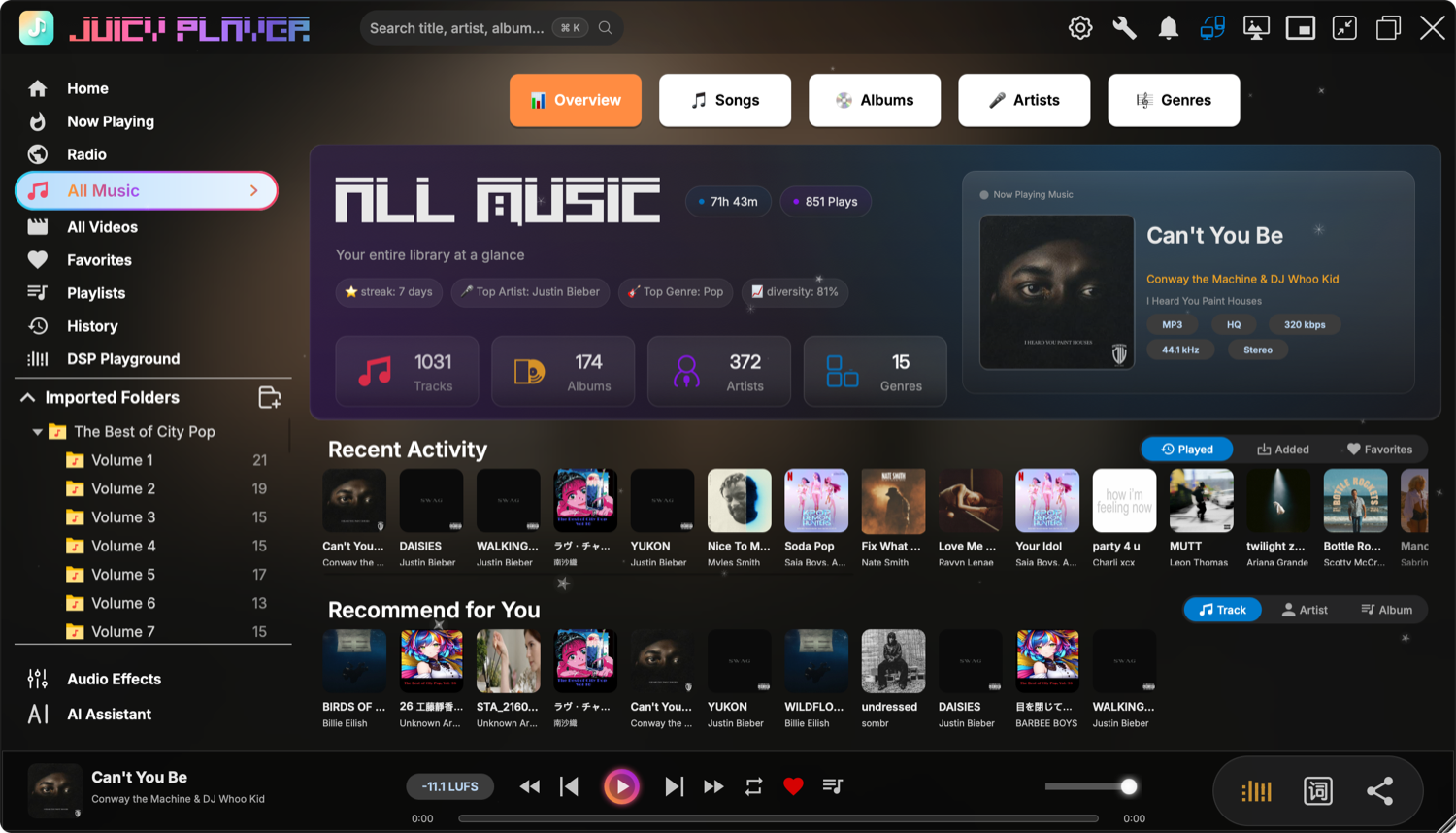
All Music is your library browser, organized into five tabs: Overview, Songs, Albums, Artists, and Genres.
- Overview greets you with your library at a glance — total tracks, albums, artists and genres, listening streak, top artist and genre, and a "recently played" cover rail.
- Songs offers four views: All Tracks, Favorites, Recently Added, and Most Played. Sort by title, artist, album, duration, size, or play count, and switch between list and grid layouts.
- Albums / Artists / Genres open into rich detail pages with biographies, chart history, and top tracks.
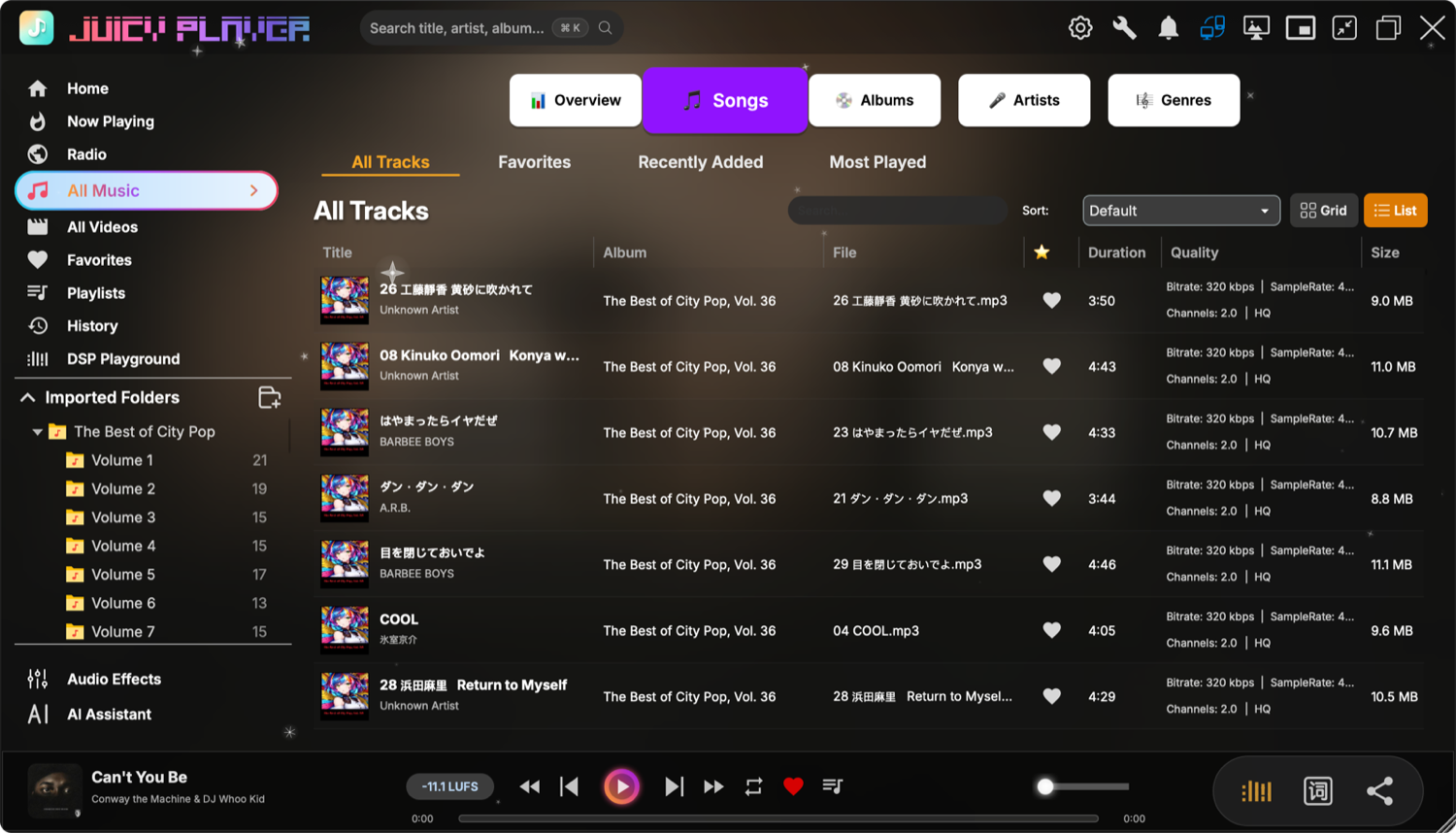
Right-click any track (or select several) to add to playlists or the queue, play next, search lyrics, save album art, copy the file path, edit properties, and more. The Properties dialog lets you edit tags directly — and can fill in missing tags automatically from MusicBrainz and Discogs, or fetch missing cover art from iTunes.
Every folder you import is also a browsable mini-library with its own subfolder navigation, sort order and in-view search. Missing covers are fetched automatically; embedded tags always take priority.
Playlists & Favorites
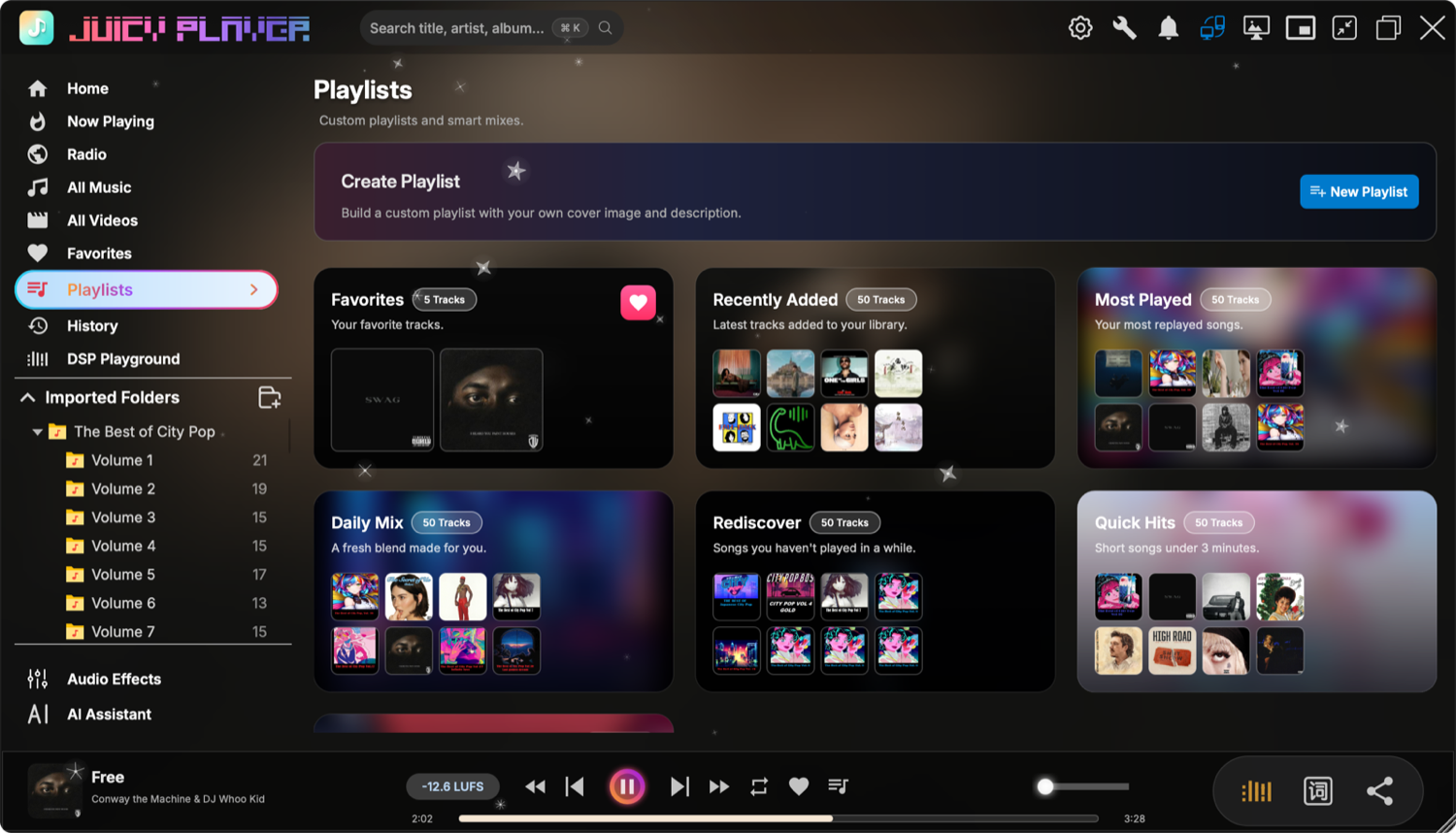
The Playlists page combines smart mixes with your own:
- Smart playlists maintain themselves: Recently Added, Most Played, Daily Mix ("a fresh blend made for you"), Rediscover (songs you haven't played in a while) and Quick Hits (under three minutes).
- Your playlists get custom names, descriptions and cover images — build them with a song picker, or import an entire folder at once.
- Playlists import and export as M3U, so you can move them to other players.
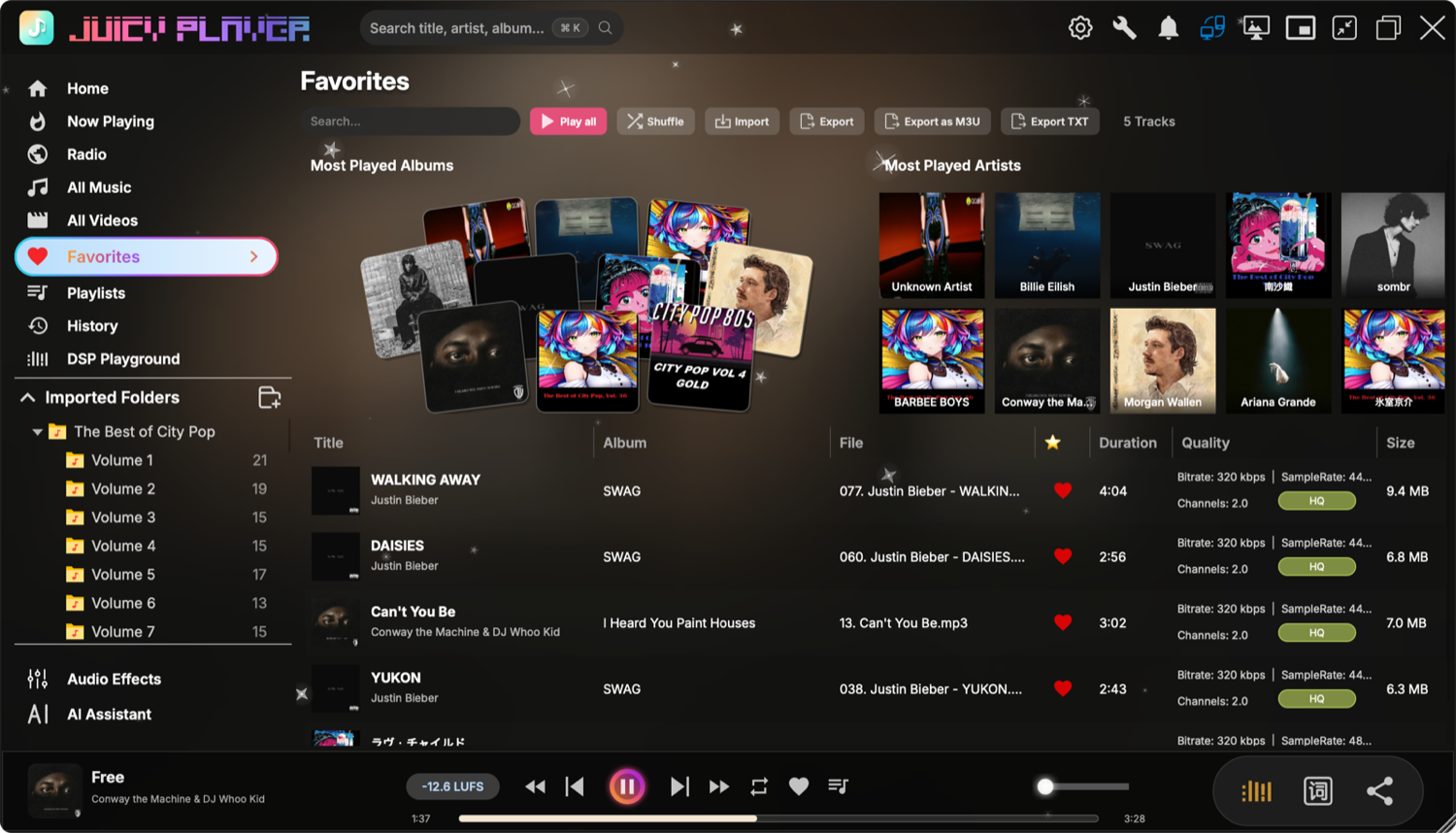
Favorites is one tap away: hit the heart in the playback bar, on any track row, or via the right-click menu. The Favorites page can export to M3U or plain text, and supports batch-adding whole albums or artists.
Now Playing, Lyrics & Queue
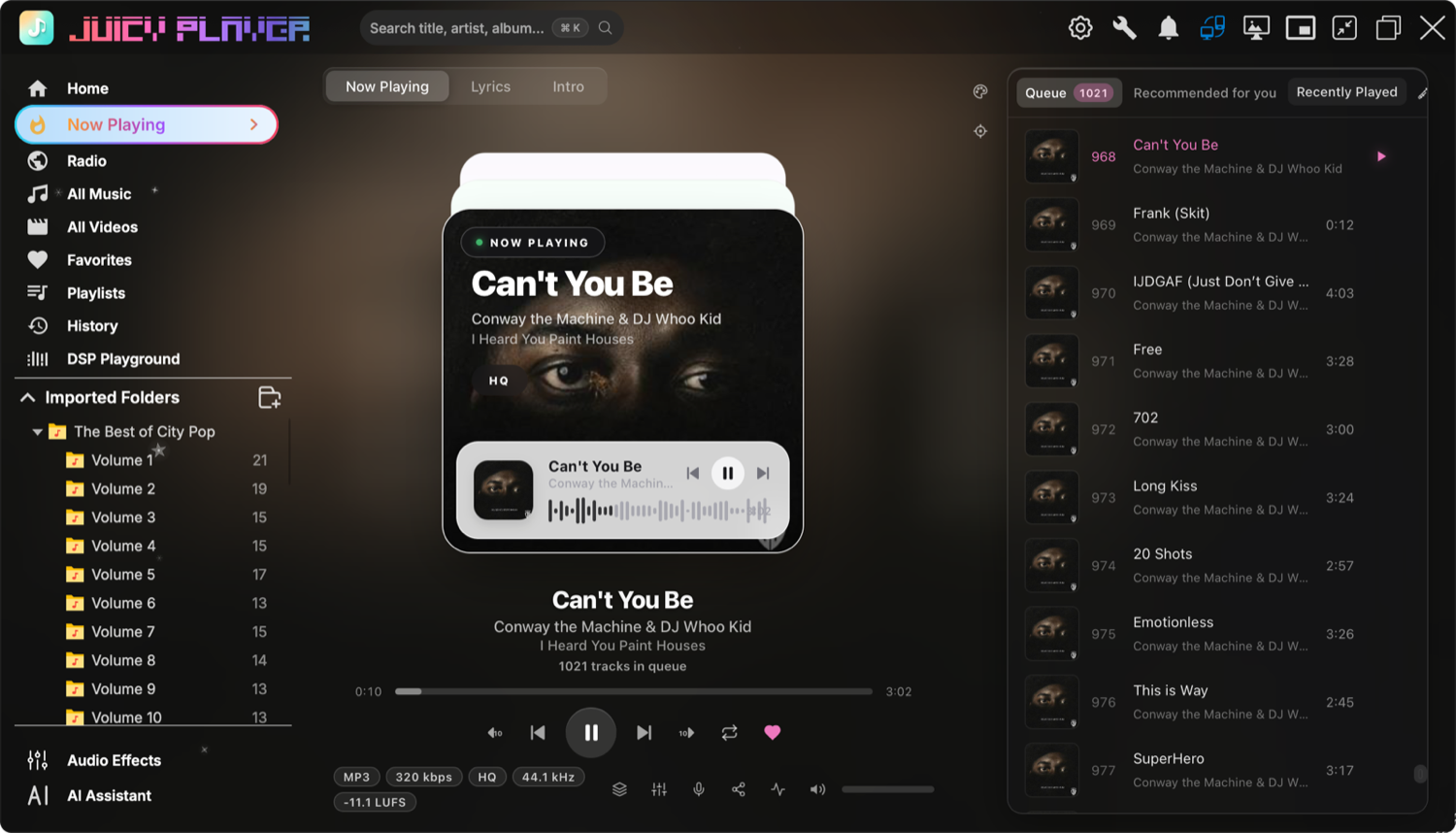
The Now Playing page is the player's showpiece — cover art, transport controls, format badges (codec, bitrate, sample rate, LUFS), and a side panel with your queue, recommendations and recently played. It's also fully skinnable: switch skins in Settings → Appearance, browse the Skin Store, import skin packs, or even design your own with the AI Assistant (see below).
Lyrics
Switch to the Lyrics tab for synced, karaoke-style lyrics. If a track has no lyrics yet, hit the lyrics button in the playback bar — JuicyPlayer searches the lrclib.net online database and saves a matching .lrc file next to your music. Lyrics also appear in the Mini Player, in the macOS widget, and on the desktop wallpaper.
Found a track with a _novocals accompaniment file (see Demucs below)? The karaoke button in the visualization view swaps to the instrumental while keeping your place — instant karaoke night.
The Queue
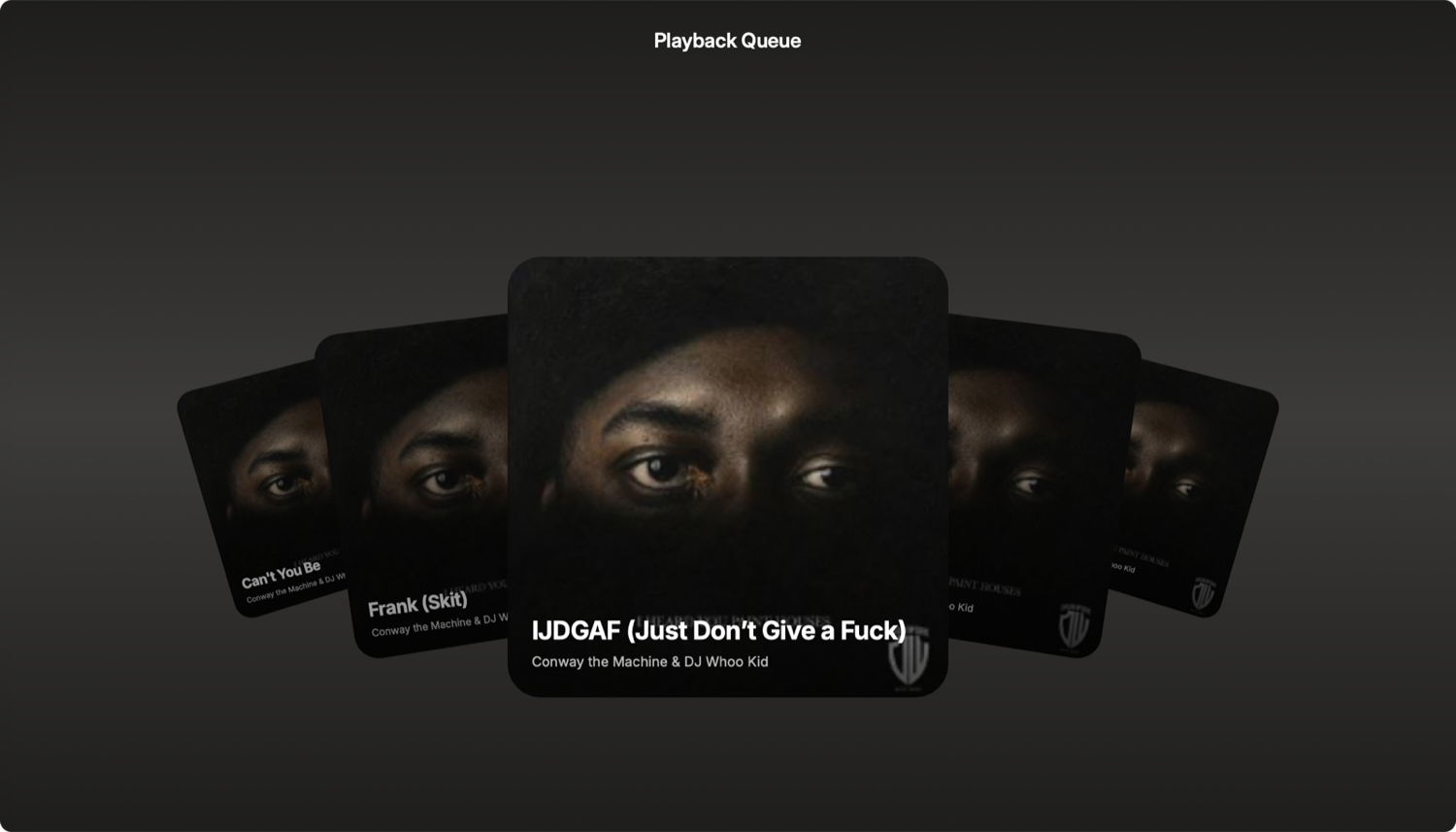
Hit the Queue button in the playback bar to open your queue as a cinematic 3D cover-flow: click a neighbouring cover to bring it front and centre, click the centre cover to play it, or scroll and use the arrow keys. "Play Next" and "Add to Queue" from any track's right-click menu slot songs into it, and the queue survives restarts — close the app mid-playlist and pick up exactly where you left off.
The Home Dashboard
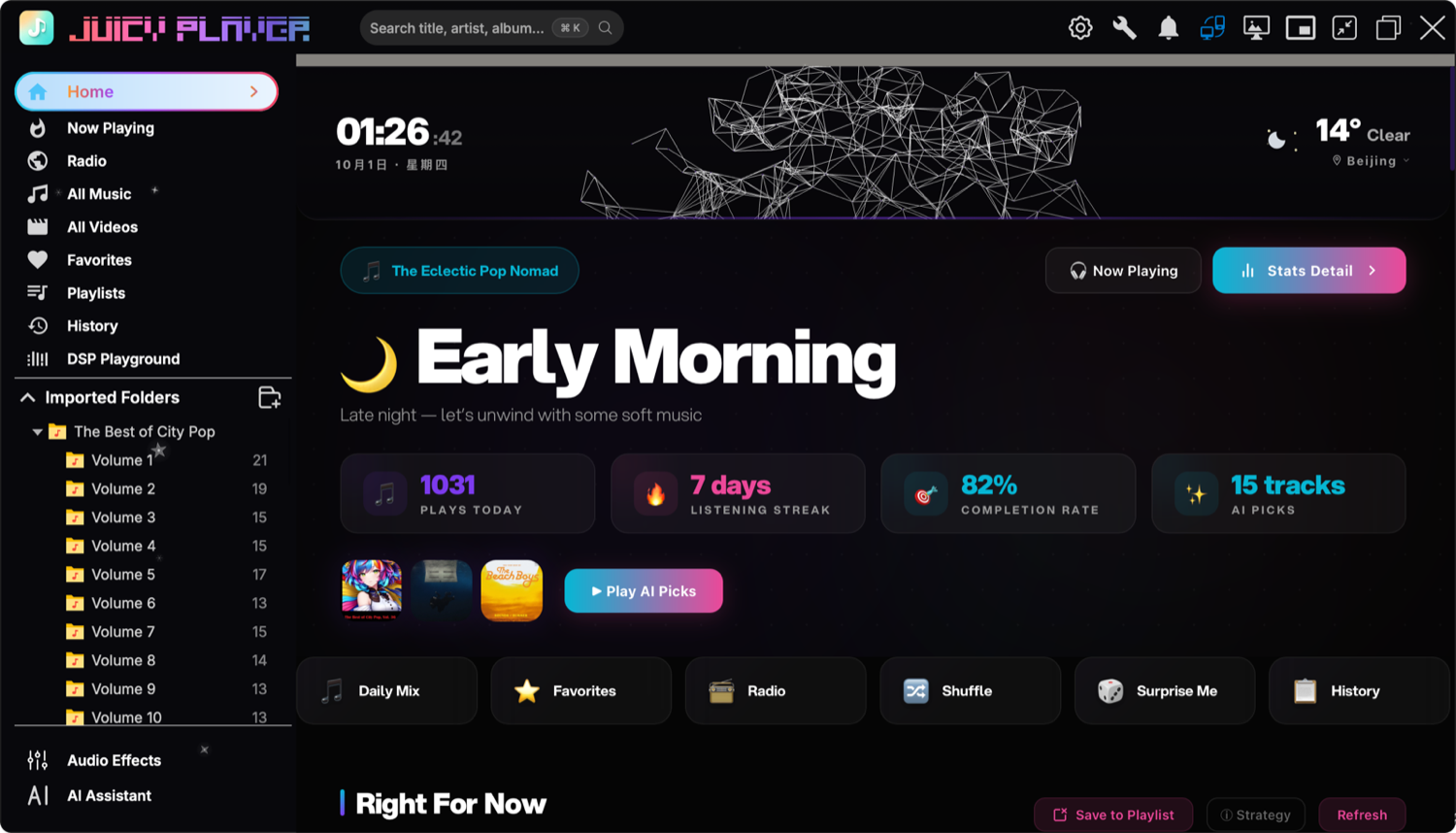
Home is your personal dashboard: a clock and live weather, a greeting that follows the time of day, your listening stats for today (plays, streak, completion rate), one-tap quick actions (Daily Mix, Favorites, Radio, Shuffle, Surprise Me), and AI-generated picks tuned to the moment — Right For Now, Trending Now, Deep Cuts and Forgotten Gems, each with a one-line reason why it picked that track.
Internet Radio
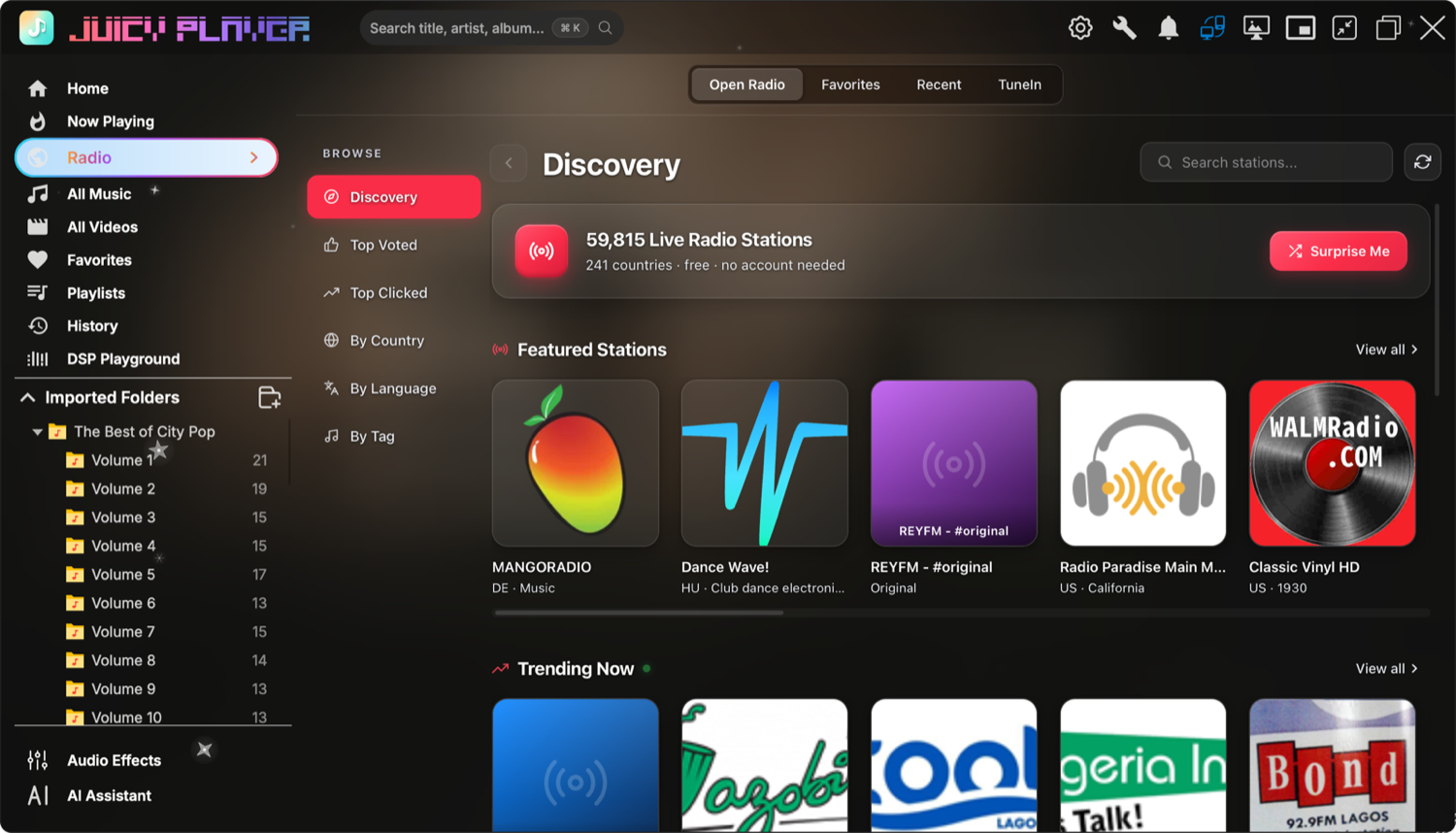
The Radio page puts tens of thousands of live stations a click away:
- Open Radio — browse a directory of 60,000+ free stations from 240+ countries by country, language, genre, or popularity (top voted / top clicked).
- TuneIn & Apple Music — sign in to stream your existing accounts, with Apple Music playing through the same DSP chain as your local files.
- Icecast / My Streams — add your own stations by URL (including .pls / .m3u playlists); codec and bitrate are probed automatically.
- Favorites & Recent — heart any station, and everything you've listened to is one click away.
Listening History & Statistics
History tracks everything you've played, filterable to today, this week, or this month — with totals for plays, listening time and completion, recent-play cover rails, and an analytics block (top tracks, top artists, audio-quality mix, format breakdown).
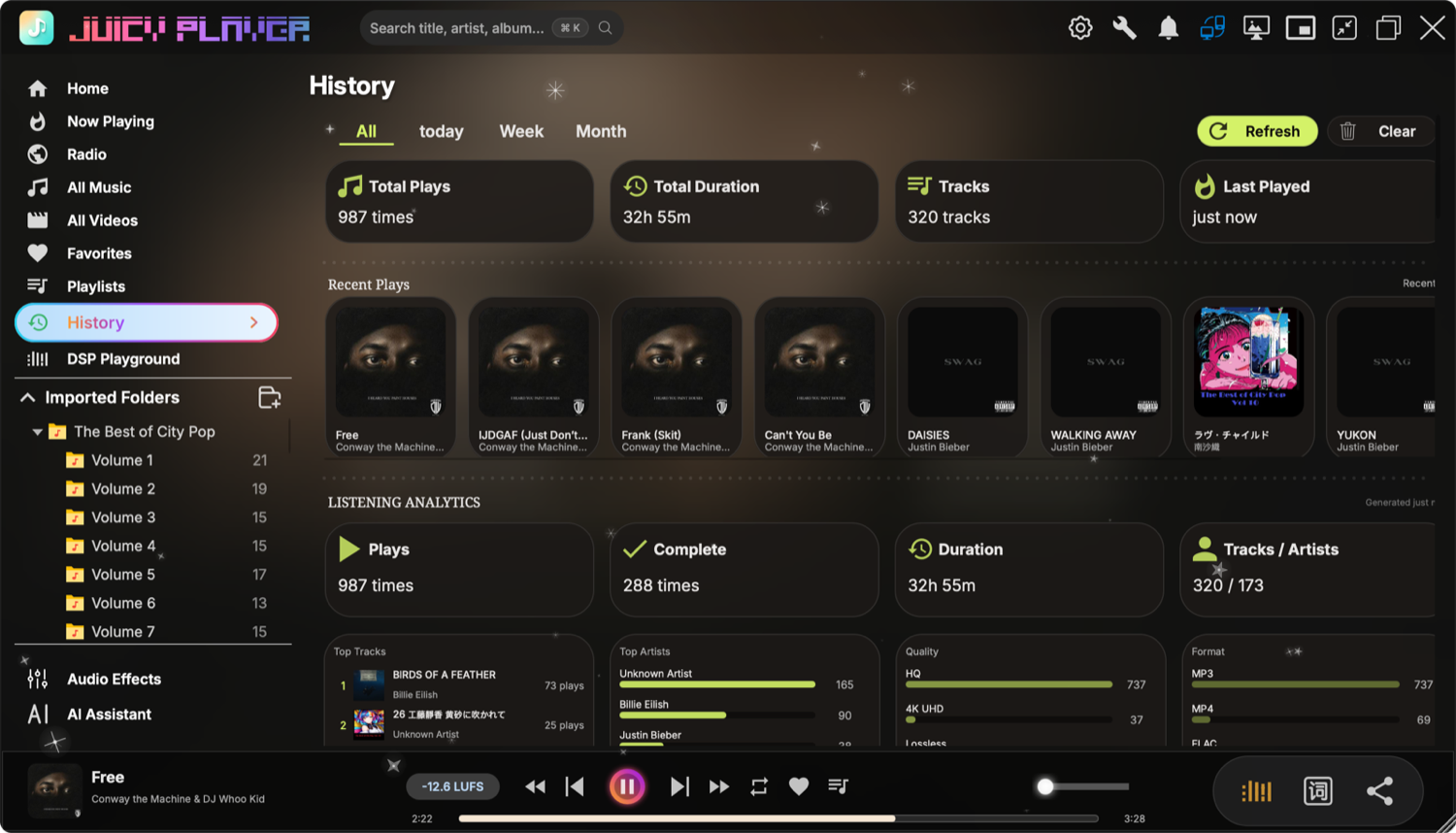
Want the long version? The Home dashboard's Stats tab opens a full statistics page with hourly listening charts, era and mood breakdowns, and deep dives you can click through to the underlying artists and albums.
DSP & Audio Effects
This is where Juicy Player earns its keep. Two ways in:
The Professional DSP panel
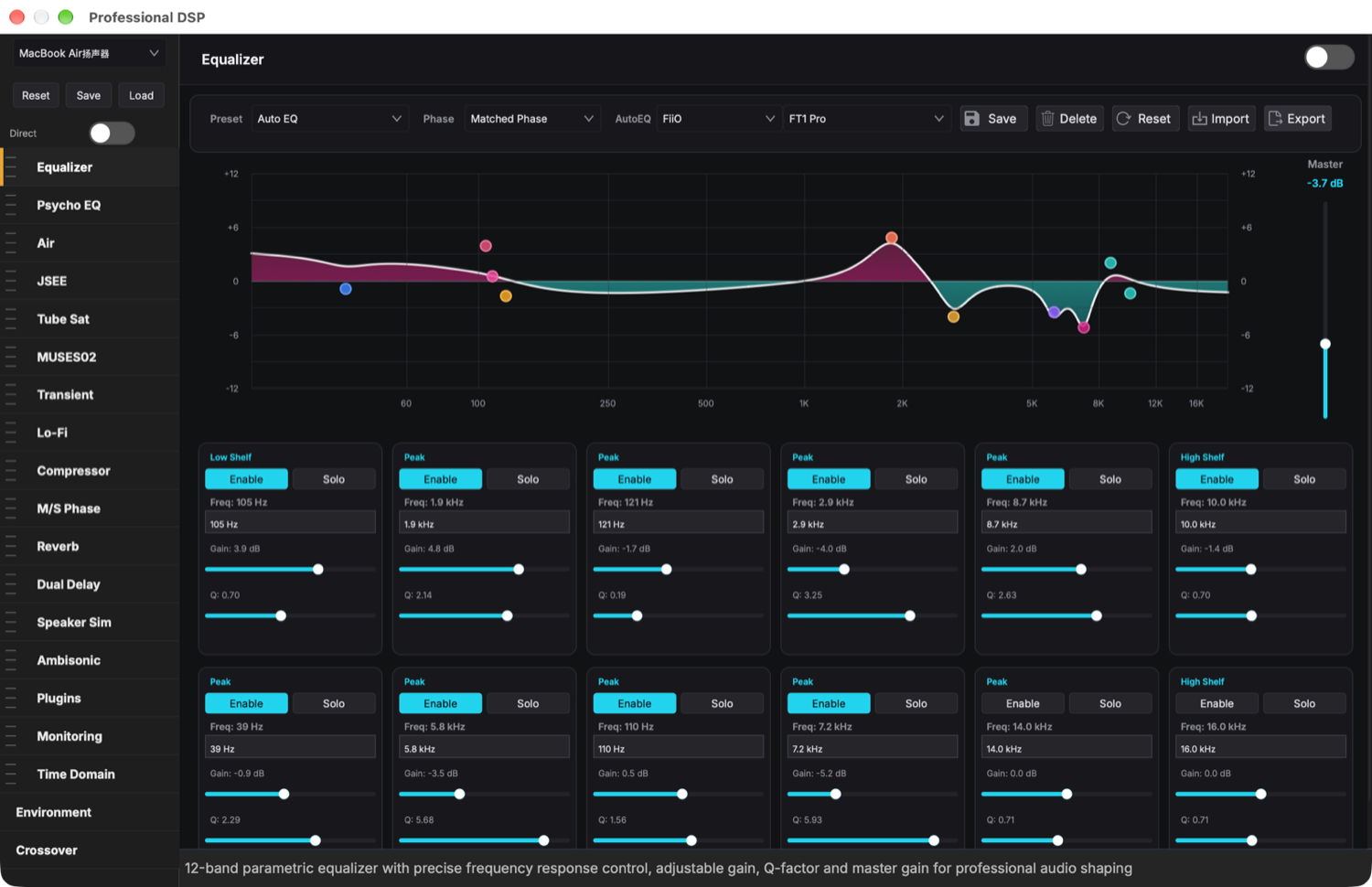
Open it from the DSP Playground toolbar (Open DSP Panel) or the Audio Effects button in the sidebar for quick toggles. The panel chains 19 studio-grade effects you can reorder, enable individually, or bypass all at once with the Direct switch:
- Equalizer — 12-band parametric EQ with a live frequency-response display and factory presets (Rock, Jazz, Classical, Bass Boost…). Best of all: AutoEQ — correction curves for thousands of headphone and IEM models. Pick your brand and model and the EQ flattens your headphones' response automatically.
- Psychoacoustic EQ, Air, DSEE (JSEE) — target-curve matching, high-frequency "air" restoration, and lossy-source enhancement that puts the sparkle back into MP3s.
- Tube Sat, MUSES02, Transient, Compressor — valve-style harmonic saturation, op-amp character, transient shaping, and a compressor with single-band, multiband and "butter" engines.
- Reverb, Dual Delay, M/S Phase — 25 acoustic spaces from cathedral to plate, ping-pong delays, and mid/side phase rotation for widening.
- Speaker Sim, Ambisonic Spatial, Environment — crossfeed and HRTF headphone simulation, full third-order Ambisonics with binaural HRTF (with camera head tracking on macOS), and an ambience mixer that layers rain, fire or room tone under your music.
- Lo-Fi, Monitoring, Time Domain, Crossover, Plugins — vintage degradation (wow & flutter, dust, bit-crush), mastering transforms, poly-sinc reconstruction, multi-band crossovers — plus hosting for your own VST3 / AU / VST plugins.
The DSP Playground
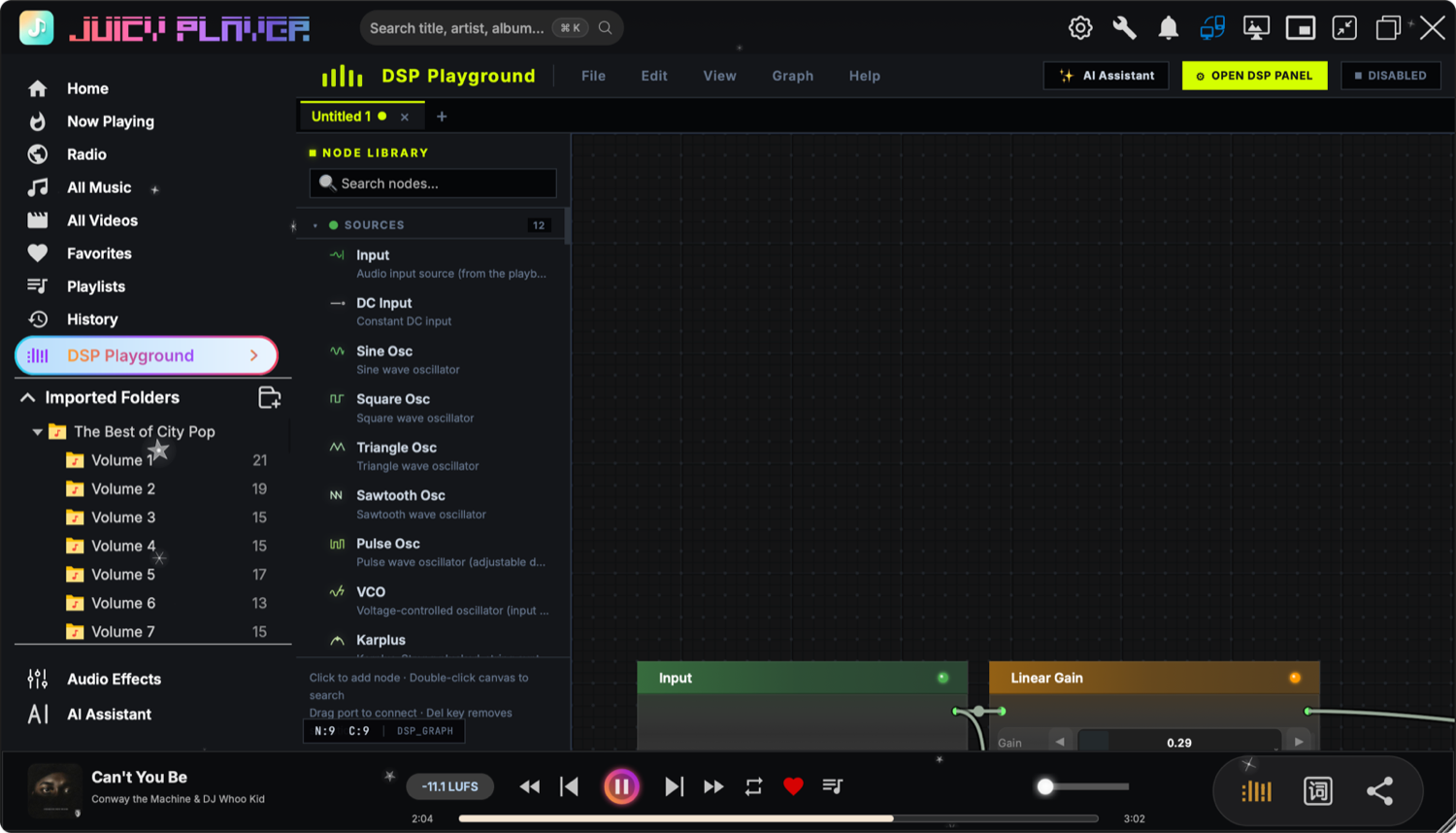
For the adventurous, DSP Playground is a full node-based patching environment wired into the live audio path: oscillators, filters, dynamics, crossovers, math and routing nodes — nearly a hundred of them — connected on an infinite canvas. Save patches as presets, and let the built-in AI assistant design a graph for you: describe the effect you want in plain language, review the generated graph, and apply it to the canvas.
Built-in Tools
The Tools button in the title bar opens a small toolbox of heavy-duty utilities:
- Demucs — AI stem separation that runs entirely on your machine: split any track into vocals, drums, bass and other, preview each stem, and save instrumentals for karaoke.
- Audiogram — turn audio into shareable video: waveform and spectrum visualizers, caption tracks, cover art, custom backgrounds, exported as MP4 or WebM.
- Library Sync — synchronize your music library between two computers over the local network.
- Plugin Marketplace — browse, install and update community plugins from inside the app.
- Batch Convert — right-click any imported folder to convert its contents between formats with quality presets.
AI Assistant & Recommendations
The AI Assistant (sidebar, bottom) is a full AI workspace built into the player:
- Bring your own model — connect OpenAI, Anthropic, Google Gemini, DeepSeek, Moonshot Kimi, Zhipu, Qwen and dozens of other cloud providers… or point it at a local model (Ollama, LM Studio, llama.cpp) and keep everything offline.
- It can build things — ask for a new Now Playing skin, a reactive desktop wallpaper, or a custom tool over your library, and the assistant writes, previews and installs it into the player.
- It knows your library — with your permission it can search tracks, organize files, write lyrics and tag your music, always confirming before anything is moved.
The same configuration powers the AI recommendations on the Home dashboard and the "Recommended for you" tab in Now Playing. No API key? The built-in local recommendation engine still delivers Trending, Deep Cuts, Forgotten Gems and mood-based picks — computed entirely on your machine.
Remote Control
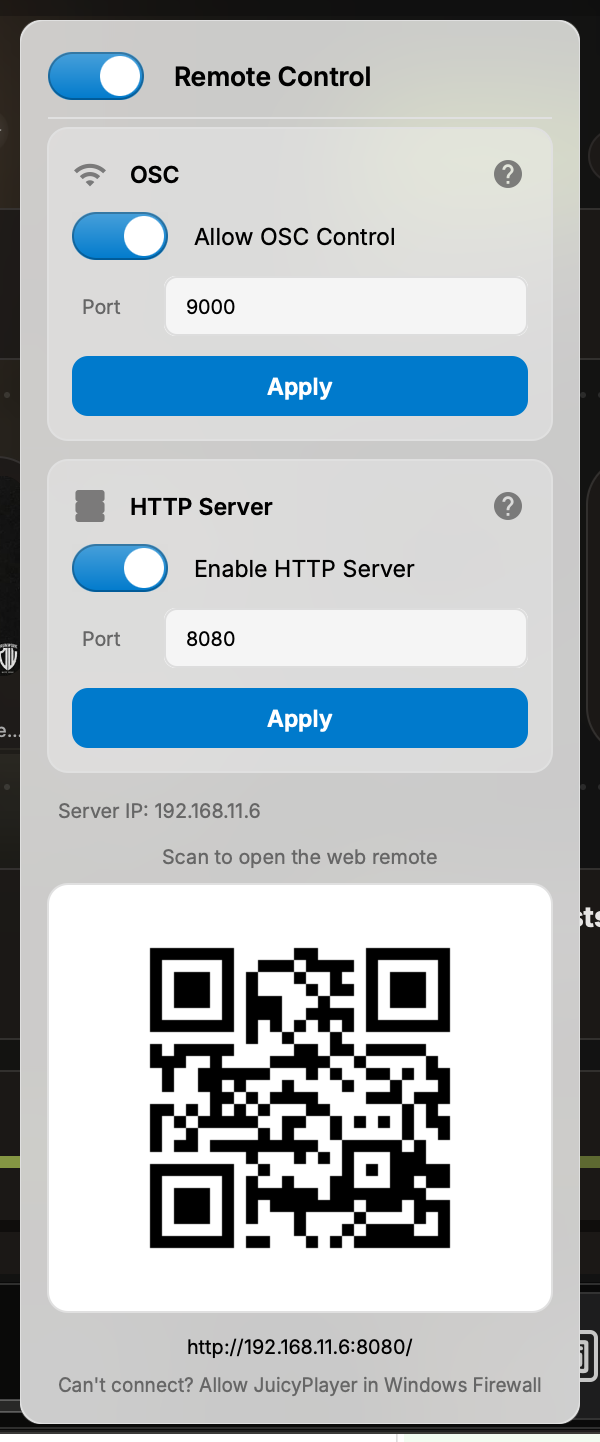
Juicy Player can be controlled from everything around it. Click the Remote Control button in the title bar:
- Scan the QR code with any phone on the same Wi-Fi to open the web remote — a browser-based control surface served by the player itself. No app, no account.
- Juicy Remoter, our dedicated mobile app (Android & iOS), adds a full remote experience: browse and search your whole library, control playback and volume, manage playlists and favorites, and see live playing info.
- OSC (UDP or TCP, default port 9000) for show-control setups like TouchOSC and Open Stage Control, with status feedback pushed back to port 9001 — including live lyrics lines and a 128-band spectrum feed for your own visuals.
- HTTP API (default port 8080) for Home Assistant, scripts and integrations: browse the library, control playback, pull artwork, stream files, even tweak DSP parameters. Players announce themselves on the network via mDNS (
_juicyplayer._tcp).
Mini Player, Tray & Widgets
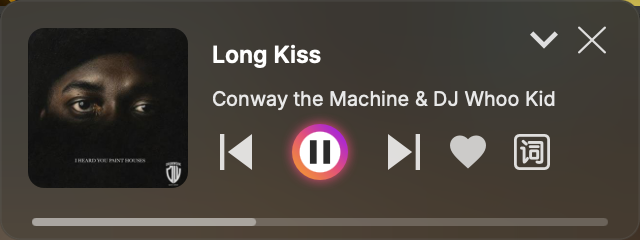
Click the Mini Player button (or ⌘/Ctrl+⇧+M) to shrink playback to a compact, always-on-top card — cover, transport, favorite and lyrics, expandable with a click. On macOS with a notch, enable the Notch Mini Player and hover the notch for a hidden control capsule.
Closing the window can keep the player running in the system tray / menu bar, with a right-click menu for transport, DSP, wallpaper and screen-keep-awake. On macOS, a WidgetKit Now Playing widget shows the current track on your desktop with play/favorite controls — plus Siri shortcuts and Spotlight search for your whole library.
Settings Reference
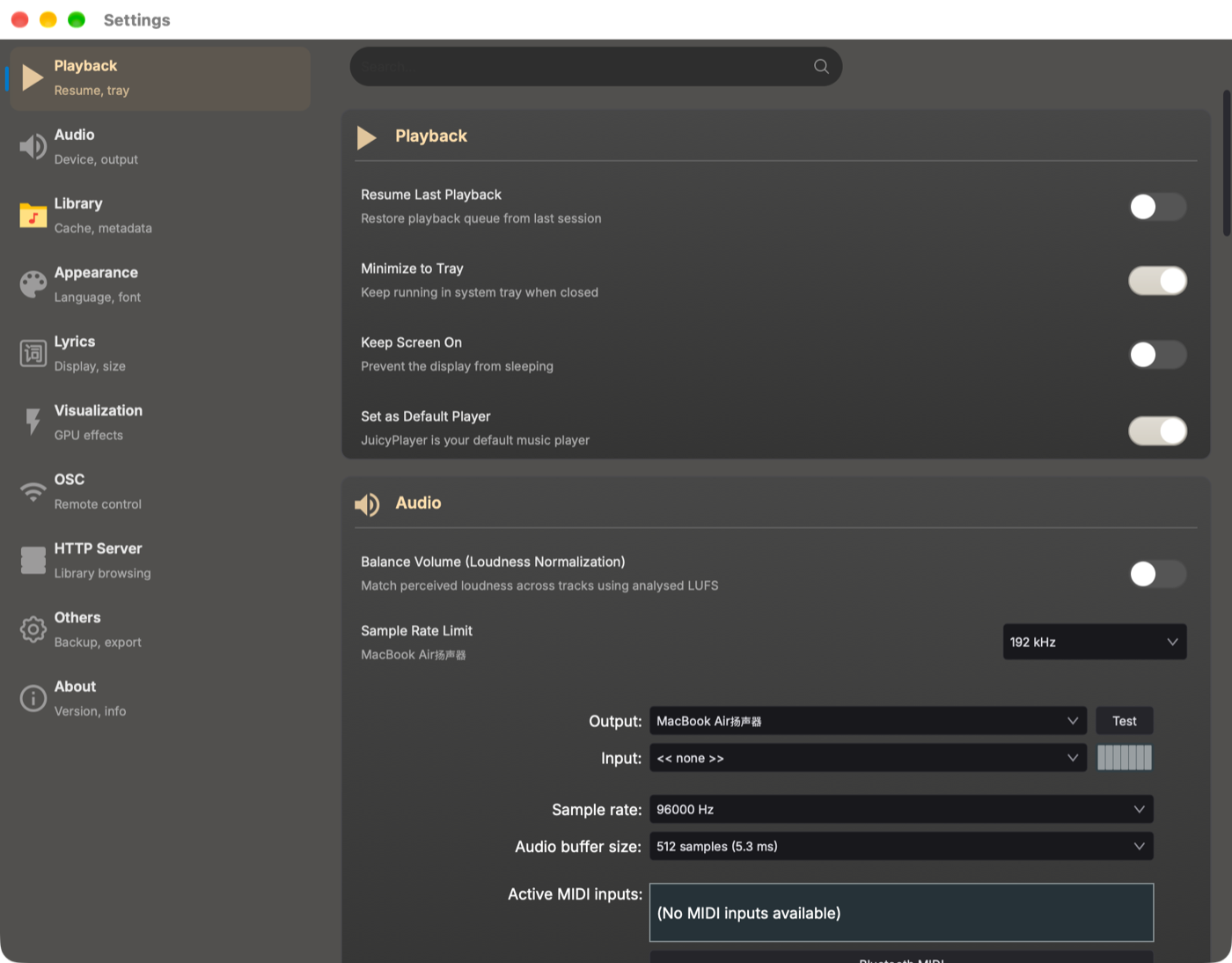
Settings (gear icon, or ⌘/Ctrl+,) is searchable and organized into ten sections:
| Section | What lives here |
|---|---|
| Playback | Resume last playback, minimize to tray, keep screen on, launch at startup, default player. |
| Audio | Output device, sample rate and buffer size, per-device Exclusive Mode (bit-perfect), sample-rate limit, LUFS loudness normalization. |
| Library | Cover and metadata caches, automatic folder monitoring, storage path. |
| Appearance | Language (14 built-in), Now Playing skin selection and the Skin Store, blur tuning, reduce motion, Notch Mini Player. |
| Lyrics | Mini-player lyrics, synced and plain lyrics typography and colors. |
| Visualization | HD (GPU) visualizations, pause on focus loss. |
| OSC | Remote control over OSC: protocol, ports, feedback target. |
| HTTP Server | The web remote and HTTP API, port configuration. |
| Others | Settings backup export/import, plus a danger zone for resetting data. |
| About | Version info, review and bug-report shortcuts. |
Keyboard Shortcuts
| Key | Action |
|---|---|
| Space | Play / pause |
| ← / → | Rewind / forward 10 seconds |
| ↑ / ↓ | Previous / next track |
| Esc | Stop playback · exit visualization · close dialogs |
| M | Mute |
| Num 0 / 1 / 2 | Random / sequential / repeat-one mode |
| ⌘K / Ctrl K | Focus the search field |
| ⌘O / Ctrl O | Open an audio file |
| ⇧⌘O / Ctrl ⇧ O | Open a folder |
| ⌘F / Ctrl F | Toggle full screen |
| ⇧⌘M / Ctrl ⇧ M | Toggle the Mini Player |
| ⌘, / Ctrl , | Open Settings |
| ⌘W / Ctrl W | Close the window |
Media keys and the system media controls work too — on Windows from the lock screen and notification center, on macOS from the Now Playing system HUD.
Supported Formats
Juicy Player plays all the formats you're likely to own: MP3, FLAC, WAV, AIFF, OGG, AAC, M4A, OPUS, WMA, and native DSD (DSF / DFF / SACD ISO). Lossless formats (FLAC / WAV / AIFF) play bit-perfect — with Exclusive Mode there's no resampling and no quality loss. Popular music-video containers (MP4, MKV, MOV and more) play in the All Videos page, with film-look color presets and super-resolution for lower-quality sources.
Troubleshooting
- Make sure both devices are on the same Wi-Fi network. Guest and public Wi-Fi networks often isolate devices from each other.
- Check that Juicy Player is running on the computer.
- Allow Juicy Player through the firewall for private networks (Windows usually prompts on first launch — if you missed it, allow it manually in Windows Security → Firewall).
- If your router has AP isolation enabled, devices can't see each other — disable it in the router settings.
.lrc files. Try the lyrics button again, or right-click a track → Search Lyrics. Instrumentals and very obscure tracks may simply not have lyrics available.System Requirements
| App | Platform | Requirement |
|---|---|---|
| Juicy Player (desktop) | Windows | Windows 10 / 11 · 64-bit (x64) or ARM64 |
| Juicy Player (desktop) | macOS | macOS 15.0 or newer |
| Juicy Remoter (mobile) | Android | Android 7.0 or newer |
| Juicy Remoter (mobile) | iOS | iOS 15.0 or newer |
Contact
Still stuck, found a bug, or have a feature request? Email us at hifior@foxmail.com — we read everything.